4.3GuidePart of How to migrate from WordPress to Astro or EmDash without losing content or URLs
WordPress export before you leave: what it includes and what it misses
WordPress's export file holds your posts, pages and custom fields, but not your media files, plugins, settings or user accounts. Here is what it leaves out, and how to list everything before you move.

On this page9 sections
WordPress’s export tool (Tools → Export) saves your posts, pages, custom post types, comments, custom fields, terms and menus into one XML file, called a WXR file. It names the authors of that content, but it is not a backup: it leaves out your media files, plugins, settings, user accounts and data that plugins keep in their own tables. Before you move, make an inventory: a list of everything your site has, so you know what the export will carry and what you must handle another way.
Checked November 10, 2026, on WordPress 7.1.
What is an inventory?
An inventory is a list of what your site has, made before you move anything. It answers two questions: “what am I moving?” and “what will break when WordPress is gone?”.
A WordPress site is more than its posts. The content sits in a database, the images sit in a folder on the server, plugins add features and sometimes their own data, and other services hang off the site: email, analytics, a newsletter. The export file covers the first part well and the rest not at all.
In the export file
- ContentPosts, pages, custom post types
- TermsCategories, tags, custom taxonomies
- Custom fieldsRaw values, one row per key
- MenusMenu items
- CommentsWith their status
- AuthorsOf the content only
- Media entriesEach file's address, not the file
Not in the export file
- Media fileswp-content/uploads
- PluginsAnd data in their own tables
- Theme and codeChild theme, functions.php
- SettingsThe options table
- User accountsPasswords and roles
- IntegrationsEmail, analytics, newsletter
- Other URLsArchives, feeds, later pages
So the export is one source for the inventory, not the inventory itself.
How to export WordPress (Tools → Export)
- Log in to your WordPress admin.
- Open Tools → Export.
- Pick All content.
- Click Download Export File.
WordPress saves a file named like yoursite.WordPress.2026-11-10.xml. Keep it private: it holds drafts, and the name and email address of every author.
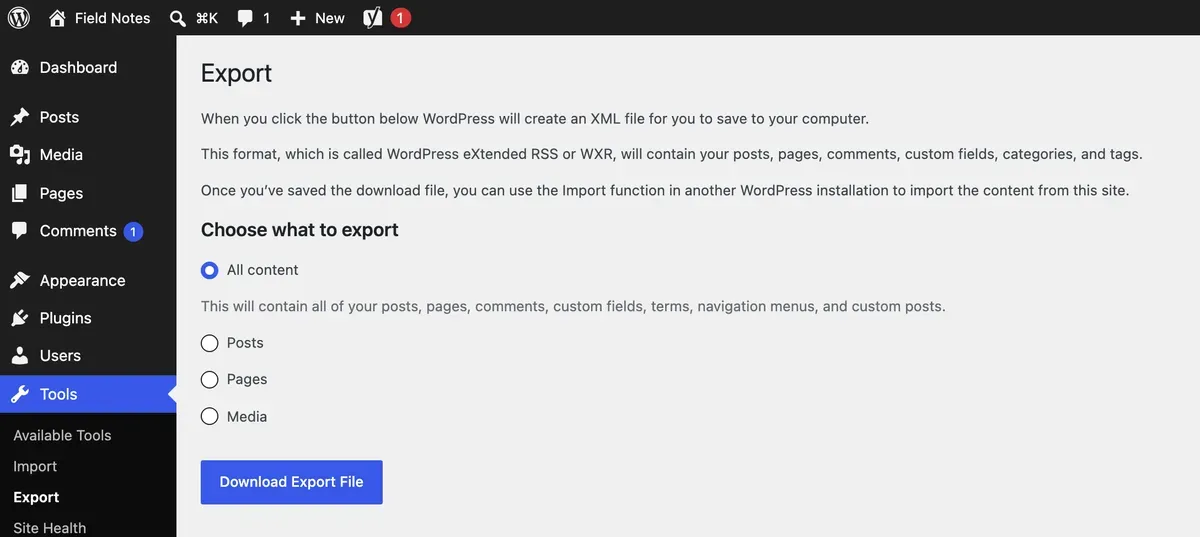
On WordPress.com, the steps differ by plan. See WordPress.com’s export guide and the FAQ below.
What the export file includes and leaves out
We checked each row against an All content export from a WordPress 7.1 test site.
| Part | In the export file? | Where it is instead |
|---|---|---|
| Posts, pages, custom post types | Yes, every status, drafts too | |
| Categories, tags, custom taxonomies | Yes, terms and their slugs | |
| Custom fields (post meta) | Yes, as raw values | |
| Menus | Yes, as menu items | Menu locations: the theme settings |
| Comments | Yes | |
| Authors | Login, display name and email of content authors | Passwords, roles and other users: the database |
| Media | Entries, each with its file address | The files: wp-content/uploads |
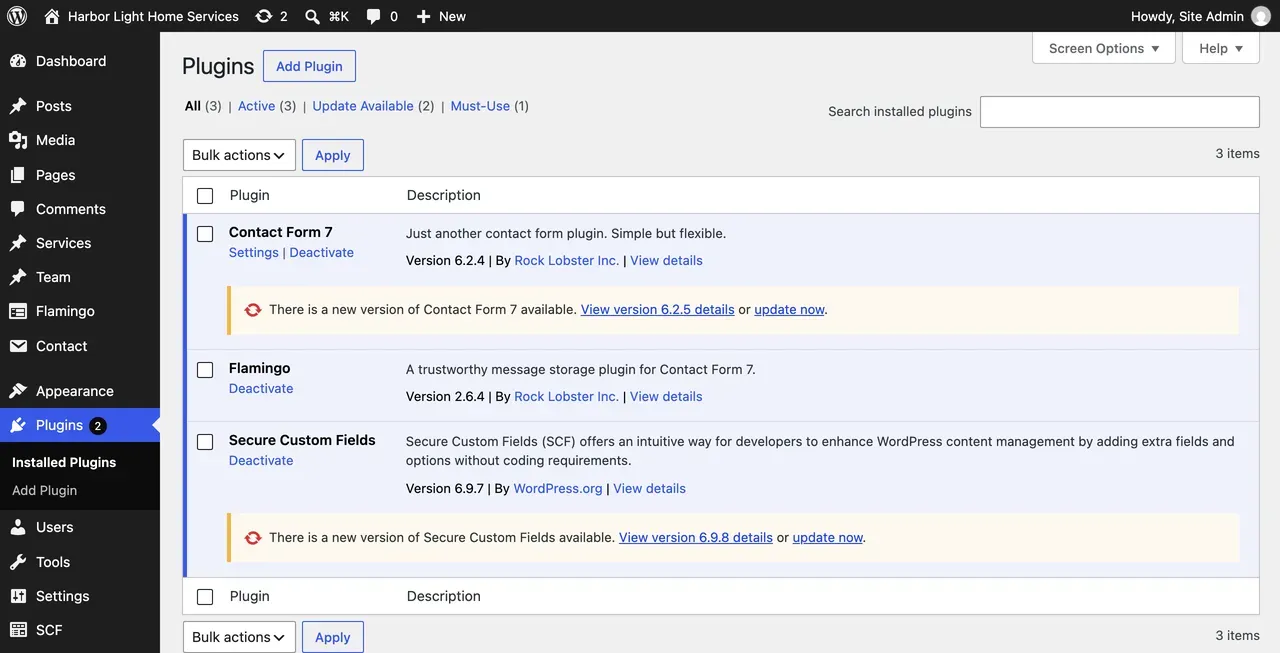
| Plugins and themes | No | The Plugins screen; the theme files |
| Site settings | No | The Settings screens; the options table |
| Form entries, orders, members | Depends on the plugin | Often the plugin’s own tables |
| Types marked not exportable | No | The plugin that adds them |
Notes:
- Custom fields are post meta: extra values stored with each post, often added by Advanced Custom Fields (ACF) or Secure Custom Fields. “Raw values” means you get the stored text, not the field’s shape. A repeater, a field that holds a list of rows, comes out as many flat keys (see the diagram below).
- Relation fields, which link to other posts, come out as a list of post IDs in PHP’s own format, for example
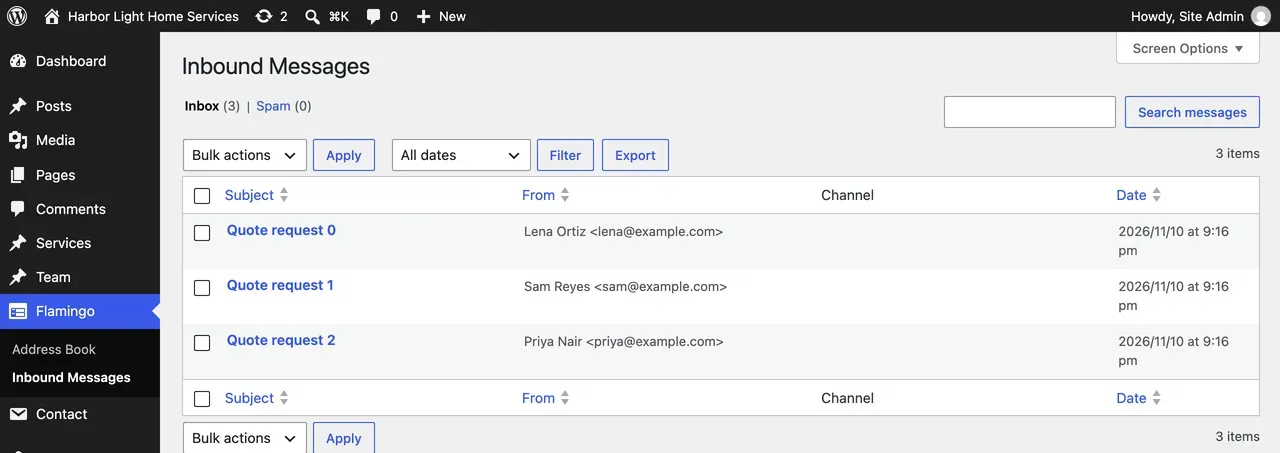
a:2:{i:0;s:2:"46";i:1;s:2:"47";}. Our content model guide shows how to read these. - Plugin data depends on where the plugin stores it. Flamingo keeps Contact Form 7 messages as posts, so on our test site the 3 saved messages and 5 contacts were in the export. Many store, form and member plugins use their own database tables instead, and those are not.
- Not exportable. A plugin can register a post type with exporting turned off. It then never shows up in Tools → Export.
In the admin
Questions (repeater)
Row 1
Question 0 about Water heater service?
Answer 0.
Row 2
Question 1 about Water heater service?
Answer 1.
In the export file
- faq2
- faq_0_questionQuestion 0 about…
- faq_0_answerAnswer 0.
- faq_1_questionQuestion 1 about…
- faq_1_answerAnswer 1.
What else to list
Everything below goes in your inventory, next to what the export gives you. The inventory worksheet has these 20 rows ready to fill in a spreadsheet, with columns for the owner, the count, the replacement and how you will check it.
Content and structure
| # | Item | Where to look |
|---|---|---|
| 1 | Post types, with counts | Each type’s list screen in the admin |
| 2 | Taxonomies, with counts | Posts → Categories, Tags, and each custom taxonomy |
| 3 | Custom fields per type, and how often each is filled | The field plugin’s settings; the export file |
| 4 | Plugins, active and inactive | Plugins screen |
| 5 | Page builder, and which pages use it | Elementor, Divi and others; open the pages |
| 6 | Shortcodes in post text | Search the content (see below) |
| 7 | Forms, and where their entries are stored | The form plugin’s screens |
| 8 | Menus | Appearance → Menus, or the Navigation block in the site editor |
| 9 | Every URL | Sitemaps, archives, feeds, ?p=123 links |
| 10 | SEO titles and descriptions | Yoast, Rank Math or similar |
Item 9 is bigger than it looks. Each post has one address, but the site also answers on category, tag, author and date archives, feeds, later list pages (/page/2/), attachment pages and query URLs. On our blog test site, 120 posts came to 374 old URLs, 158 of them query URLs.
Operations and integrations
| # | Item | Where to look |
|---|---|---|
| 11 | Theme and custom code | Child theme, functions.php snippets, must-use plugins |
| 12 | Existing redirects | A redirect plugin, .htaccess, or the host |
| 13 | Users and roles | Users screen |
| 14 | Languages | A multilingual plugin and its locales |
| 15 | Scheduled tasks (WordPress cron) | Backups, feeds, emails that run on a timer |
| 16 | What sends mail, and through which service | |
| 17 | Analytics and consent tools | The tracking code and cookie banner |
| 18 | Other services | Newsletter, CRM, payments, embeds |
| 19 | DNS, domain and host settings | The host’s and the registrar’s control panels |
| 20 | Database size and traffic | The host’s panel or your analytics |
Items 15 to 18 are the ones people forget. They keep working until WordPress is switched off, and then they stop without a warning.
How to make the inventory by hand
Use one source per item, and write down where each answer came from.
- Counts and plugins: the admin. Open Plugins, each post type’s list, Appearance → Menus, and Users.
- URLs: the public sitemap at
/wp-sitemap.xml, which WordPress makes on its own. SEO plugins replace it with theirs, often at/sitemap_index.xml. - Public types: the REST API, WordPress’s built-in data interface, at
/wp-json/wp/v2/types. It lists only types registered for the API. On our business test site, the Team type was in the sitemap and the export but not in the REST API. - Shortcodes: a shortcode is a tag in square brackets, such as
[contact-form-7], that a plugin or theme replaces with content when the page is shown. Search your post content (or the export file) for[followed by a name, and list the names. Then check each name against your plugins and theme. A match is a shortcode. No match may be plain text, or a shortcode from a plugin you removed. On our page-builder test site,[pricing_table]sat in 4 pages and no installed plugin registered it, so those pages show the raw tag today. - Shortcodes added at render time: some themes and plugins add them to the page as it is built, so they never appear in post content. Open a sample of pages and compare what you see with what is in the editor.
- Page builders: search the export file for the builder’s name (
elementor, for example) or its field keys, then open those pages.
How to make the inventory with the skill
The wp-inventory skill is part of wp-esc, four free skills that a coding agent, such as Claude Code or Codex, uses to plan a move from WordPress to Astro or EmDash. A skill is a short instruction file the agent reads, plus a script it runs. wp-inventory reads your site and writes inventory.json: content types and counts, fields, taxonomies, plugins, page builders, shortcodes, menus and every old URL it can find. It changes nothing on your site.
To add the skills to your agent:
npx skills add astronomic-dev/wp-escThe skills run scripts from the repo, so the README also has you clone it once. The scripts need Node 26 or newer. Then ask your agent to make an inventory of your site. Under the hood it runs:
node ~/wp-esc/bin/wp-inventory.mjs --url https://www.example.comThat is a level 1 run. For a deeper run, add your export file and level 3. Level 3 reads your user name and application password from two environment variables, WPM_WP_USER and WPM_WP_APP_PASSWORD. Set them yourself in your own terminal, and never put the password in a file you commit or paste it to your agent:
export WPM_WP_USER='your-user-name'
export WPM_WP_APP_PASSWORD='your-new-application-password'
node ~/wp-esc/bin/wp-inventory.mjs --url https://www.example.com --level 3 --wxr export.xml
unset WPM_WP_USER WPM_WP_APP_PASSWORD
The three access levels
The skill starts with what anyone can see, and you decide whether to give it more.
| Level | You do | It adds | It cannot see |
|---|---|---|---|
| 1. URL | Nothing | Public REST API, sitemaps, page HTML | Drafts, menus, fields not in the API, the full plugin list |
| 2. + export file | Export from Tools → Export | Custom fields, drafts, menus | Media files, settings, plugin tables |
| 3. + application password | Make a password for this run | Regular plugin list (not must-use plugins or drop-ins), private posts, user count | Plugin tables, types hidden from the API |
3. + application passwordFull plugin list, home page settings, private posts, user count
2. + export fileCustom fields, drafts, menus
1. URLPublic REST API, sitemaps, page HTML
Outside every level
Plugin-owned tables, the media files themselves, most settings
Notes:
- Level 1 finds plugins from traces in the page HTML, such as asset paths. On our business test site, it found Contact Form 7 and a custom fields plugin, but not Flamingo, which leaves no trace on the front end.
- Level 3 reads the plugin list and settings only when your user is an Administrator. Of the settings, it keeps the site title, tagline, front page and posts page.
Is level 3 safe?
An application password is a separate password WordPress makes for one app, under Users → Profile → Application Passwords. It carries the full rights of the user who makes it. The skill limits what it does with it:
- HTTPS only. It refuses plain
http://. - Requests go only to your own site. A redirect to another host stops the run.
- Read-only: GET requests only, at most 5 a second.
- The password is read from your terminal’s environment and never written to a file, a log or
inventory.json.
Make a new password for this run and revoke it right after; the skill gives you the steps. Level 1 is always an option, and it is a fine place to start.
What the coverage line tells you
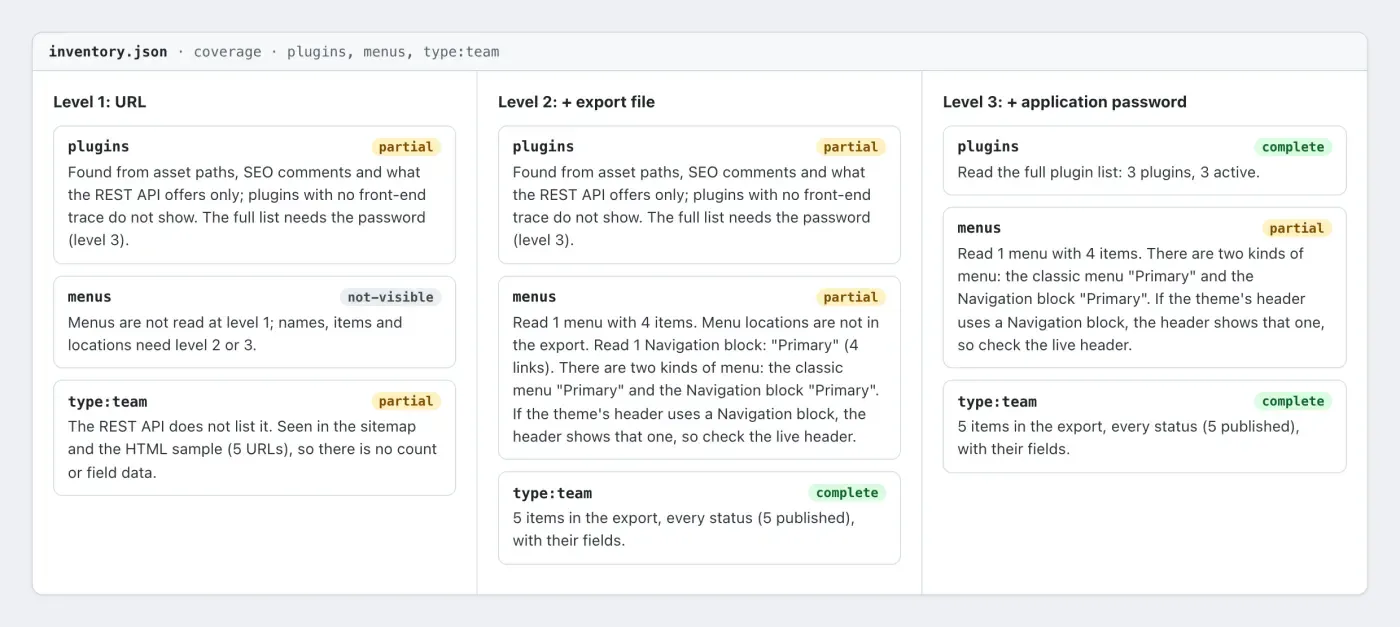
Every run lists what it read, what failed and what it could not see, area by area, in a coverage list. Your agent reads it first and tells you the gaps before any counts. Here is part of the level 1 run on our business test site:
[
{ "area": "plugins", "status": "partial",
  "detail": "Found from asset paths, SEO comments and what the REST API offers only; plugins with no front-end trace do not show. The full list needs the password (level 3)." },
{ "area": "menus", "status": "not-visible",
  "detail": "Menus are not read at level 1; names, items and locations need level 2 or 3." },
{ "area": "type:team", "status": "partial",
  "detail": "The REST API does not list it. Seen in the sitemap and the HTML sample (5 URLs), so there is no count or field data." }
]
With the export file and an application password added, the same areas read: “Read the full plugin list: 3 plugins, 3 active.”, “Read 1 menu with 4 items.” and “5 items in the export, every status (5 published), with their fields.”
Common mistakes
- Treating the export file as a backup. It has no media files, settings or user accounts.
- Forgetting form entries and orders. Many plugins store them outside the export.
- Missing hidden types. A type not in the REST API can still be in the sitemap and the export.
- Not listing URLs. Without the list, you cannot plan redirects.
- Forgetting what runs in the background. Cron jobs, emails and integrations stop when WordPress does.
- Leaving an application password active. Revoke it when you are done.
FAQ
Export or backup: what is the difference?
The export holds your content, for moving it to another system. A backup, from your host or a backup plugin, copies the files and the database so you can restore WordPress itself. Keep a backup until the move is done.
Can I export the whole site?
Not with Tools → Export. Use a backup plugin or your host for the files and the database, and the export for the content.
How do I download my media?
Copy the wp-content/uploads folder over SFTP or with your host’s file manager. If you move to EmDash, its importer can download the media from the live site instead, so keep WordPress online until it is done.
The export fails or times out on a big site. What now?
Export one post type at a time from the same screen, or pick a date range for posts. If your host has WP-CLI, WordPress’s command-line tool, wp export can split the file by type, by date or by size.
How do I export the database?
From your host’s panel or phpMyAdmin. You rarely need it to move to Astro, but keep it as a backup.
Is WordPress.com different?
In places. The export lives in a different spot in the WordPress.com dashboard, and what you can install, such as a custom fields plugin, depends on your plan. See WordPress.com’s export guide.
What to do next
- Mostly posts, pages and a few fields: a short move: check the fields, then plan the model. Next, plan your content model.
- A page builder, a store or many shortcodes: plan time to rebuild those pages. Check the move guide’s “Should you move?” first.
- Moving to EmDash: the EmDash Exporter plugin carries more than the export file, including custom fields and SEO fields. See EmDash’s migration docs.
For how WordPress and EmDash compare, read EmDash vs WordPress. For the whole move, from inventory to redirects, see the WordPress move guide.