4.0Guide
How to migrate from WordPress to Astro or EmDash without losing content or URLs
How to move a WordPress site to Astro or EmDash, step by step: what to list first, where the site should go, how to plan the content, and how to keep every URL working.
On this page13 sections
Most WordPress sites build each page on the server when someone visits, unless a cache serves a saved copy. Astro usually builds pages ahead of time, and EmDash adds a browser admin and a database on top of Astro so people can still log in and write. Moving takes seven steps, and the first one is a list, not an export.
Checked November 10, 2026.
The roadmap
Most guides to leaving WordPress do one thing: export the posts and convert them. That moves the words. It does not tell you what else the site does, where the new site should live, or what happens to the links people and search engines already have. We use seven steps, in this order, and every section below follows them.
WordPress stays online
1. Make an inventoryList what the site has
2. Decide where it goesPlain Astro, EmDash or stay
3. Plan the content modelTypes, fields, routes
4. Move the contentImporter or export file
5. Keep your URLsA redirect for each old URL
6. Replace your pluginsForms, search, comments, SEO
7. VerifyCheck before you switch
Switch DNS to the new site
WordPress stays online until step 7 passes. That is your rollback: if something is wrong, you have not lost anything.
How long it takes depends on what the inventory finds. A blog with posts and pages is a different job from a site with custom types and a page builder, so we do not give a time frame.
How WordPress and Astro differ
WordPress usually renders each page on the server, per request: PHP runs, plugins load, the database answers, and the page is built. Caching plugins and static-export plugins are the exceptions. Astro is a framework for building websites. By default it builds every page ahead of time into plain HTML files, a static site, and it can also render some or all pages on a server. EmDash is a content system built on Astro that uses that server mode, so an edit in the admin shows on the site without a rebuild.
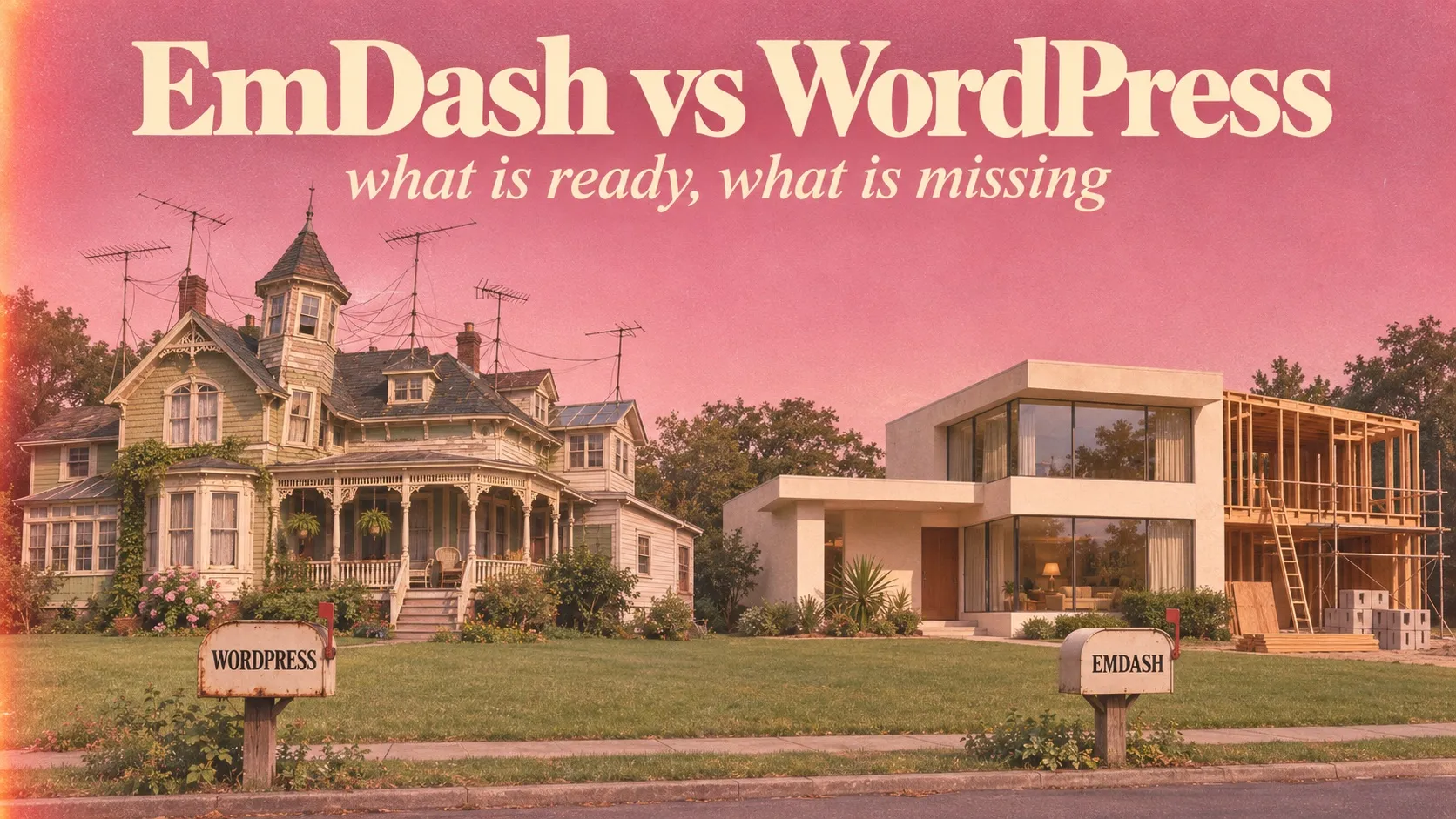
Our EmDash vs WordPress guide has the full comparison and a diagram of how a page reaches a visitor on each.
Should you move?
Most of a content site moves well. The hard parts are the ones a plugin or a page builder made for you.
| Part of your site | How it moves | Notes |
|---|---|---|
| Posts and pages | Easily | Export file or EmDash importer |
| Categories and tags | Easily | Check nested categories and slugs |
| Custom post types | Some work | Needs a planned content model |
| Custom fields (ACF and similar) | Some work | Repeaters and relations need care |
| Media | Some work | The export file links to files, it does not hold them |
| Users and roles | Some work | The export carries authors (name, email, login name), not passwords or roles |
| Shortcodes and page builders | Hard | Rebuilt by hand; no tool converts them |
| Forms, search | Replaced | A service or a kit part |
| Comments | Some work | EmDash imports them; on plain Astro, a comment service replaces them |
| Store, members, courses | Hard | See the store paths below |
If the site sells things, there are three paths:
- Digital goods: a hosted checkout such as Polar. Our own site sells its themes this way.
- Physical goods: a headless ecommerce back end, a store service with no front end of its own, behind your Astro pages.
- Ready-made tools: Shopify for a store, Podia or Memberful for courses and members.
A full “Should you leave WordPress?” guide is coming later. Until then, the table and the decision tree in step 2 are the check.
Step 1: Make an inventory
List what the site has before you export anything, because the export file leaves things out: media files, plugins, settings and the data some plugins keep in their own tables. You can do it by hand, or with the free wp-esc skills, which your coding agent runs. They read the public site, an export file or an application password, and say what each one could not see.
Our WordPress export guide has the full checklist, the table of what the export file carries, and the three access levels.
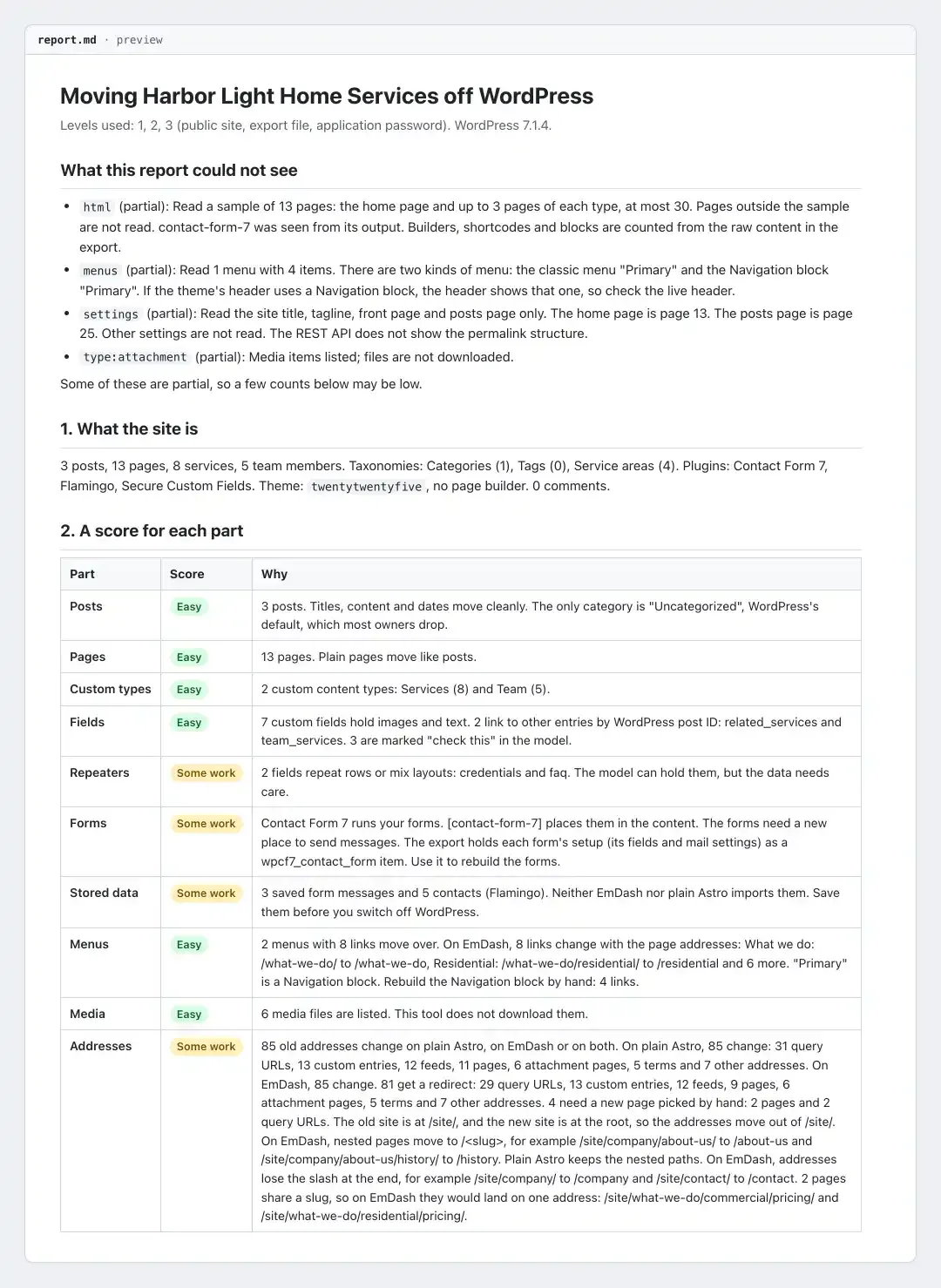
The skills then score each part of the move. Here is part of the assessment for one of our test sites, a home services business with custom types for services and team members, Contact Form 7 and Flamingo:
| Part | Score | Why |
|---|---|---|
| Posts | Easy | 3 posts; titles, content and dates move cleanly |
| Custom types | Easy | Services (8) and Team (5) |
| Repeaters | Some work | 2 fields repeat rows: credentials and faq |
| Forms | Some work | Contact Form 7 forms need a new place to send messages |
| Stored data | Some work | 3 saved form messages and 5 contacts in Flamingo; no import brings them over |
| Addresses | Some work | 85 old addresses change, because the site moves out of a /site/ subfolder |
Step 2: Decide where the site goes
Two things decide it: who edits, and whether the site depends on something only WordPress does.
Does the site depend on a store, members or a page builder you cannot rebuild?
Yes
Stay on WordPress
Do you want to keep WordPress as the admin?
Yes
Headless WordPress
Not supported by Astronomic products
Do the people who edit need to write in a browser?
Yes
EmDash
Browser admin and a database
Plain Astro
Markdown files, no database
- Plain Astro. Content lives in content collections, folders of Markdown files with a schema that says which fields each entry has. You edit in a code editor and publish with Git, and the built site can run on free static hosting.
- EmDash. A browser admin with drafts and scheduling, a database, and a media library. It runs on Cloudflare Workers or on a Node.js server.
- Headless WordPress. Keep WordPress as the admin and use Astro only for the front end. It is a real option, but you still run WordPress hosting, updates and plugins. Astronomic products do not support WordPress as a back end.
- Stay on WordPress. If the site lives on a store, a member area or a page builder you cannot rebuild, staying is the right call.
The EmDash vs WordPress guide covers what EmDash has today and what it is still missing.
Step 3: Plan your content model
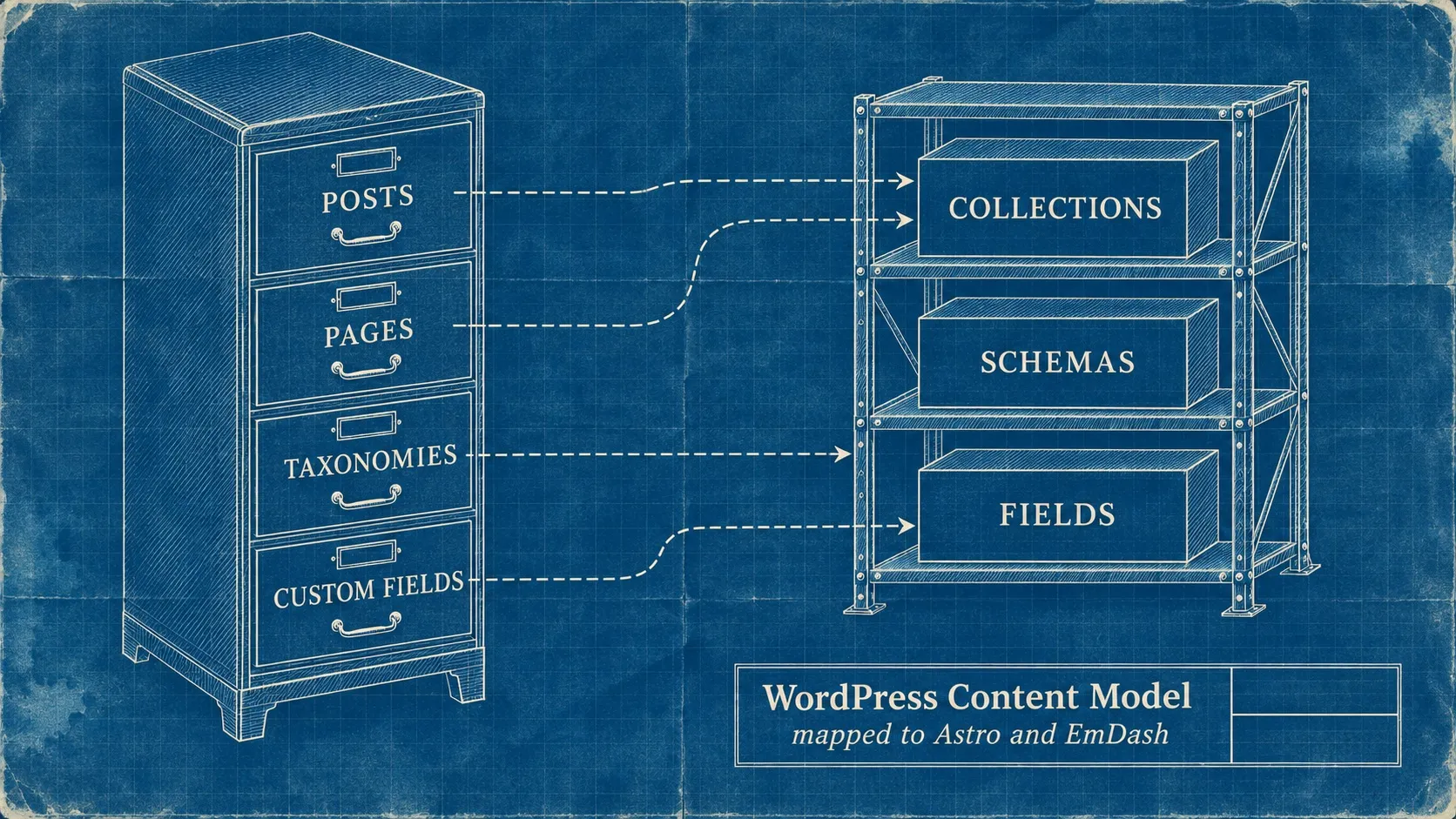
The content model is the list of content types, their fields and their URLs. Both the EmDash importer and the export tools copy your old model as it is, so this is the step where you clean up years of “just add another field”: drop the empty ones, merge the duplicates, and decide what each type is for.
Our content model guide shows how to read your fields and decide what to keep.
Step 4: Move your content
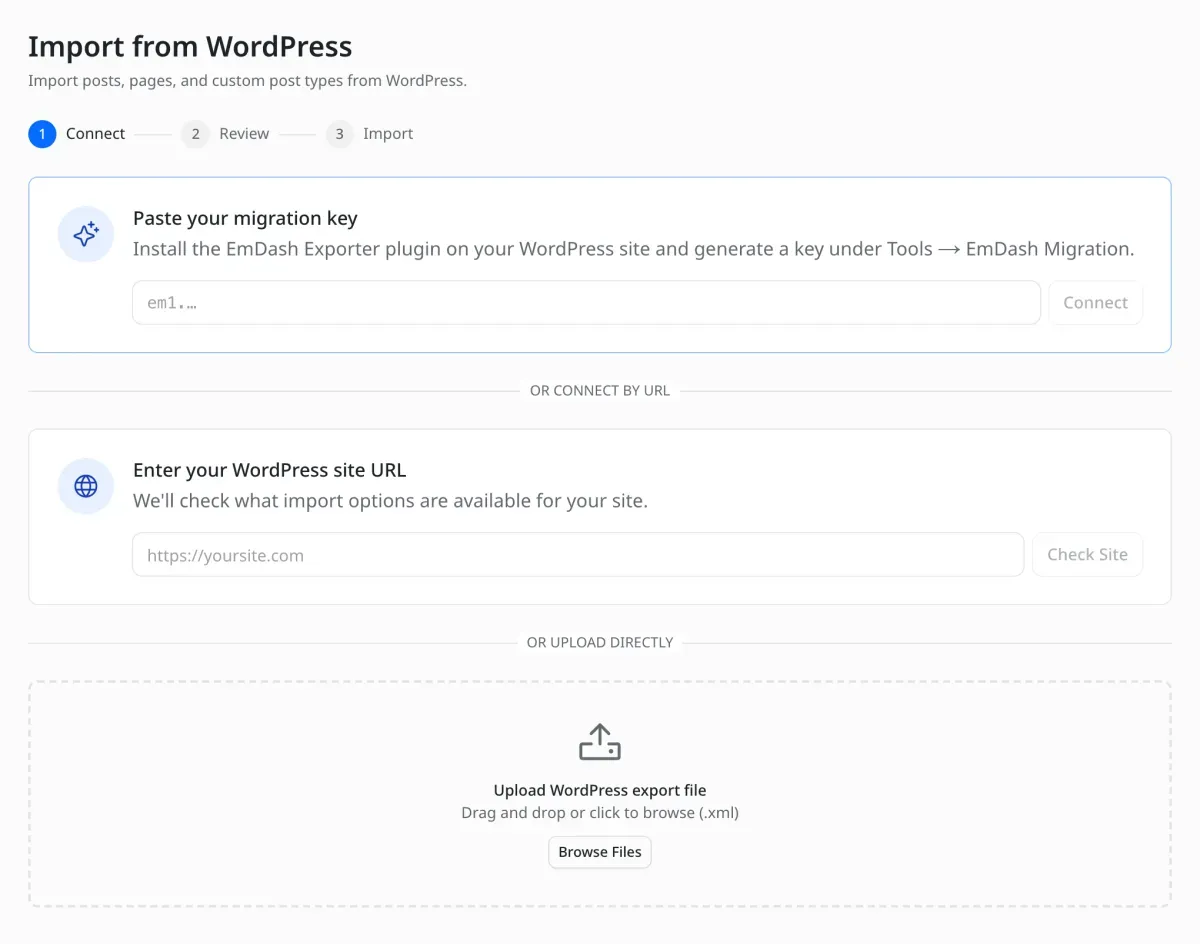
WordPress’s export tool (Tools → Export) saves the content as a WXR file, an XML file of your posts, pages, terms and fields. EmDash has a WordPress importer in its admin: upload the WXR file, or connect the EmDash Exporter plugin on your WordPress site, which carries more, such as custom fields and SEO fields (EmDash’s migration docs). For plain Astro, wordpress-export-to-markdown by Will Boyd turns the WXR file into Markdown files. Astro’s WordPress guide lists other routes.
After the import, check four things: post statuses (EmDash brings in every status except published as a draft, and schedules posts that were scheduled), dates, media, and any [shortcode] left in the text.
A detailed “Moving your content” guide is coming later.
Step 5: Keep your URLs
A redirect sends a visitor, or a search engine, from an old address to the new one. Every old URL that changes needs one. EmDash’s importer does not keep your permalinks or make redirects for you, and a move often changes more addresses than you expect: EmDash puts child pages at /<slug>, without the slash at the end, and a site that lived in a subfolder moves to the root.
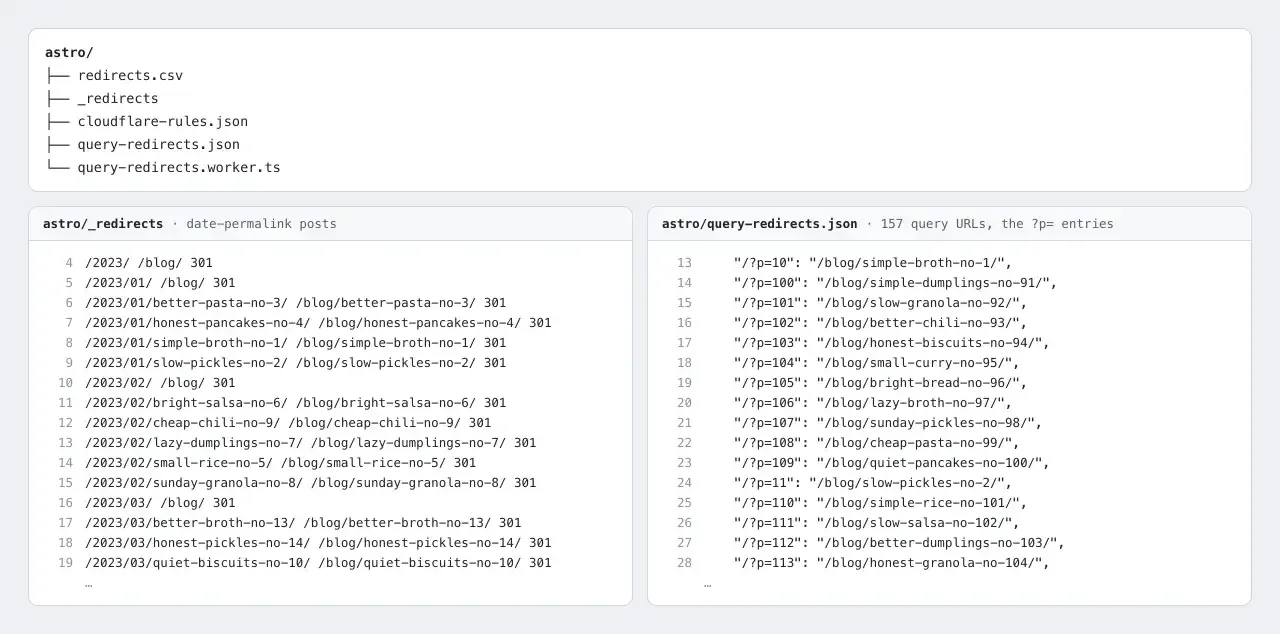
The wp-redirect-plan skill writes the plan for Cloudflare hosting, in two folders: astro/ for a plain Astro site and emdash/ for EmDash, since the two lay out URLs differently. Each folder holds five files:
redirects.csv, the plan: one row per old URL, with its new address and a status. Rows it cannot place are markedreviewfor you to decide._redirects, for path redirects. It goes in the new site’spublic/folder.cloudflare-rules.json, Cloudflare Single Redirect rules for query-style URLs such as?p=123, which_redirectscannot match. Cloudflare’s Free plan allows 10 of these rules.query-redirects.json, the same query URLs as a map from each old URL to its new path.- A small handler that reads that map on the new site: a Worker (
query-redirects.worker.ts) for plain Astro, or middleware (query-redirects.middleware.ts) for EmDash. It has no rule limit.
For the query URLs, use the Cloudflare rules or the handler. With more than 10 query URLs, the handler is the default. For other hosts, redirects.csv holds every row.
Test every redirect on the deployed test site. Cloudflare does not apply _redirects to requests that your Worker code serves. On a Node.js host, _redirects does nothing: use the host’s own redirect rules.
A detailed “Keep your URLs and rank” guide is coming later.
Step 6: Replace your plugins
Each plugin did a job. List the job, then pick its new home:
- Forms: a form service. Our kit’s form parts post to one.
- Search: a search index built with the site, or a hosted search service.
- Comments: EmDash has comments built in, with moderation. On plain Astro, use a comment service.
- FAQ: plain content. Our kit has FAQ sections.
- SEO: EmDash has SEO fields, a sitemap and redirects built in. On plain Astro, titles and descriptions go in each page’s frontmatter.
A detailed “Replace your plugins” guide is coming later.
Step 7: Verify, then switch
Build the new site beside the old one, at a test address. Before you switch, check:
- Old URLs return a 301 redirect and land on the right page.
- Every form sends, and the message arrives.
- Search finds pages.
- The sitemap and the SEO titles and descriptions are in place.
- Analytics records a visit.
- The DNS record’s TTL (how long other servers cache it) is lowered a day ahead, so the switch spreads fast.
Freeze content on WordPress before the switch: stop edits, close comments and turn off forms. If that is not possible, re-import anything new since the import. If you roll back, copy any posts, comments or form messages the new site received back to WordPress, or save them for the next try.
Then point DNS at the new site. Keep WordPress running, and its DNS record ready to point back, until the checks pass on the live address. The migration readiness checklist has every check in one list.
Common mistakes
- Exporting before you know what you have. The export file leaves out media files, plugin tables and settings.
- Copying the old model as it is. You carry every unused field into the new site.
- Forgetting redirects. Old links and rankings break on launch day.
- Shutting WordPress down too early. EmDash’s media step downloads files from the old site, and WordPress is your rollback.
- Trusting “converted” shortcodes. They show up as raw
[shortcode]text.
FAQ
How much does it cost? Count what you pay to own the site, not hosting alone: setup time (yours, a developer’s or a coding agent’s), hosting, a forms or search service, and upkeep. Set that against what you pay now for hosting, paid plugins and updates. The cost notes in our EmDash guide have current prices.
How long does it take? It depends on the inventory: how many posts, custom types and page-builder pages you have. The assessment gives a difficulty for each part, not a date.
Will my site go down? It does not need to. Build the new site beside the old one and switch DNS when step 7 passes.
Do I need to code? Plain Astro means editing files and using Git. EmDash setup takes a developer or a coding agent once; after that, editors work in the browser.
Will I lose my Google rankings? Redirects protect them, and we cannot promise more than that. A move without redirects loses them.
Can I move an Elementor site? The content can move. The layouts must be rebuilt.
Can I move a WooCommerce store? Not with these tools. See the store paths.
Can my editors keep using a browser? Yes, with EmDash. Plain Astro has no admin.
What to do next
Move if your site is mostly content and you want fewer parts to patch. Stay if the site lives on a store, a member area or a page builder you cannot rebuild.
When not to pick Astro: a WooCommerce store with many products and no budget to rebuild it, or a team that depends on many plugins with no replacement.
To start:
- Download the migration readiness checklist.
- Make your inventory with the WordPress export guide, or run the wp-esc skills with your coding agent.
- Try both paths on the free Starter. Every Astronomic theme runs on plain Astro and on EmDash.