4.4GuidePart of How to migrate from WordPress to Astro or EmDash without losing content or URLs
WordPress content model: how to map it to Astro and EmDash
How to map WordPress post types, taxonomies and custom fields to Astro content collections or EmDash, when to redesign and when to keep the old model, with real files from a real site.
On this page12 sections
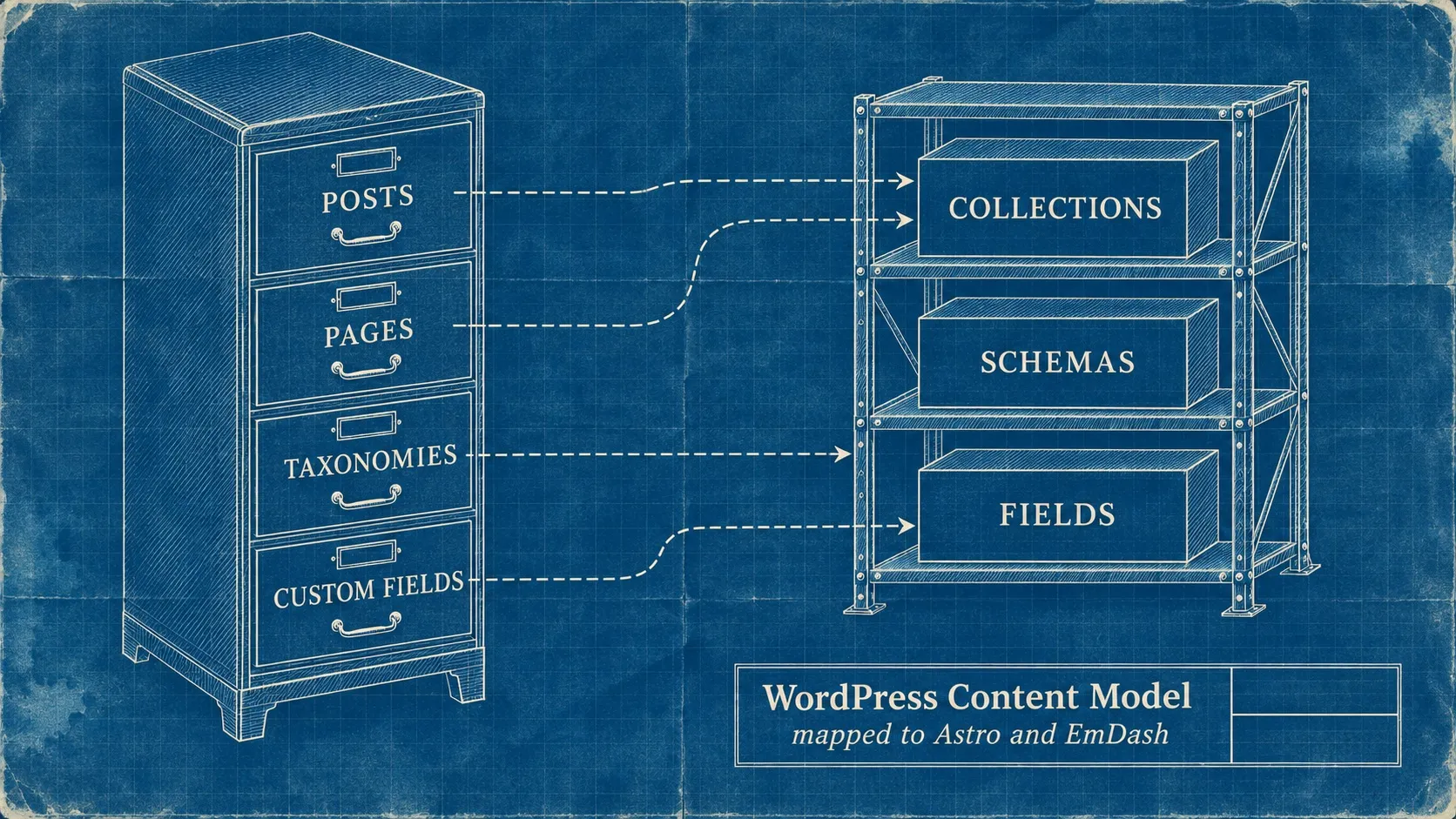
A content model is the list of your content types, the fields each one has and how they link: for example, a Service with a title, a tagline and the other services it points to. In WordPress these are post types, taxonomies and custom fields. In Astro they become content collections with a schema, and in EmDash they become collections with fields in the admin. Decide on the new model before you import, because the importer builds on whatever shape it finds, unused fields and all.
Checked November 10, 2026, against Astro 7.3 and EmDash 1.4.
What is a content model?
A content model is a plan of your content, written down. It has three parts:
- Content types. A content type is one kind of thing your site publishes: a blog post, a service, a team member. Each type has many entries.
- Fields. A field is one piece of information every entry of a type can have: a title, a photo, a price. A field has a type of its own, such as text, number, image or date.
- Links. A link connects entries of two types, such as a team member and the services they do. A link has a cardinality: how many entries can sit on each side. One-to-many means one entry links to many (one author, many posts). Many-to-many means many on both sides (a service has many team members, and a team member does many services).
Our example in this guide is a real WordPress site we run for tests: a home-repair company called Harbor Light Home Services. It has two custom types, Services and Team, built with Secure Custom Fields, the free fork of Advanced Custom Fields (ACF). It runs in a /site/ subfolder, so its old URLs start with /site/; the new site serves them from the root. Here is its model.
ServiceType
- Title
- Tagline
- Hero image
- Warranty note
- Questions (rows)
- Body
/services/{slug}/
Team memberType
- Name
- Job title
- Headshot
- Credentials (rows)
- Body
/team/{slug}/
Service areaTaxonomy
- Residential
- Commercial
- Emergency
- Same day (under Emergency)
/service-area/{path}/
Links
The same model can live in three places. In WordPress, it is spread over a post type, a field group and a taxonomy. In Astro, it is one file: src/content.config.ts. In EmDash, it is collections and fields in the admin, and you can set them up from one file too, a seed.
WordPress
- Post type: service
- Field group: Service details (Secure Custom Fields)
- Taxonomy: service_area
One model you reviewmodel.json
Plain Astrosrc/content.config.ts
- Collection: service
- Schema: tagline, hero_image, faq rows…
- service_area: a list of term slugs
EmDashseed/seed.json
- Collection: service
- Fields in the admin
- Taxonomy: service_area
Why plan it before you move
WordPress lets a model grow by accident. Each plugin adds fields, and each redesign leaves the old ones behind. A move is the one time you can redesign the model, and no import tool does that for you. Each path takes the old shape as its starting point:
| Path | What it does with your model |
|---|---|
| EmDash, with an export file | Brings posts, pages, custom post types, categories and tags, authors and media |
| EmDash, with the Exporter plugin | Also brings custom fields and ACF values, with a type for each field |
| Plain Astro | Nothing yet: you write the schema, then move the entries into Markdown |
Notes:
- Field types are partly guesses. With the Exporter plugin, EmDash types each ACF field from its field group. For any other custom field, the type is a guess from the field’s name and one stored value.
- The import does not change a field you already have. It adds missing collections and fields. If a field exists with a type that does not fit, the import screen marks it Incompatible, and you change the field by hand.
- Old fields come with the rest. Years of WordPress leave fields that are empty on most entries. The inventory shows how often each field is filled.
So plan the model first, then set it up, then import into it.
How WordPress parts map to Astro and EmDash
This table follows one complete entry from our test site: the service “Leak repair”. The middle column is what our wp-content-model skill writes to src/content.config.ts. The right column is what EmDash holds after the import.
| WordPress | Value on “Leak repair” | Astro collection | EmDash |
|---|---|---|---|
| Post type | service |
Collection service |
Collection service |
| Title | Leak repair | title, required |
title, required |
| Slug | leak-repair |
The file name | Slug |
| Status | Published | draft: false |
Published (drafts are built in) |
| Date | February 1, 2024 | date (posts only) |
Kept by EmDash itself |
| Body (blocks) | One paragraph | The Markdown body | content, Portable Text |
| Excerpt | Leak repair, done right. | excerpt, optional |
excerpt, text |
| Featured image | Image 7 | image(), optional |
featured_image, image |
| Text field | tagline |
z.string() |
tagline, string |
| Text area | warranty_note |
z.string(), optional |
warranty_note, text |
| Image field | hero_image: image 8 |
image(), optional |
hero_image, json: holds the old image |
| Relation field | related_services: 45, 46 |
Loose until you set it | related_services, json: old IDs |
| Repeater | faq: one row |
A list of objects | faq, json: the rows |
| Custom taxonomy | Service area: Residential | service_area: term slugs |
Taxonomy service_area |
| SEO title and description | None on this site | seo_title, seo_description |
seo_title, seo_description |
| Menus | Primary | menus collection |
Menus |
| URL rule | /site/services/leak-repair/ |
The route you build | URL pattern /services/{slug} |
| Page-builder layout | None | No field: rebuild as components | No field: rebuild as sections |
Notes:
- Image fields. After the import, an ACF image field holds what ACF returns for it: by default an object with the old attachment’s ID, URL and sizes. It is not an EmDash image. After the media import, add a new image field, pick each entry’s file and delete the old field. In Astro, image fields stay optional until the files are in the project, because
image()fails the build for a missing file. - Relations. The export file stores
related_servicesas serialized PHP:a:2:{i:0;s:2:"45";i:1;s:2:"46";}, which is WordPress post IDs 45 and 46. The import keeps the value as it arrives. Relink each ID to the new entry, using the ledger in Step 5. - Taxonomies. When you upload an export file, EmDash skips terms of a custom taxonomy it has no definition for. The Exporter plugin path can create those definitions for you. The seed holds them either way, which is one reason to apply it first.
- SEO fields. The skill keeps Yoast or Rank Math titles and descriptions when the old site has them. EmDash’s import brings those two across, but not the focus keyphrase.
- Reusable blocks are left out of the model, with theme templates and other editor data. EmDash imports them from an export file as sections. In plain Astro, rebuild each one as a component.
- Dates. EmDash keeps each entry’s published and updated dates itself, and its import fills them from WordPress. So the seed has no date fields.
Taxonomies
A taxonomy groups entries: categories and tags are the two WordPress ships with, and plugins add more. Our test site has one custom taxonomy, Service areas. Five things to decide:
- Hierarchy. Nested terms need a parent. Service areas nest (Same day sits under Emergency); tags do not.
- Many-to-many. A service can have many terms, and a term groups many services. Store the link on the entry side: each service lists its term slugs.
- Term data. A term image or description becomes a field on the term.
- Term pages. Each term had a page, such as
/site/service-area/residential/. Decide if the new site keeps term pages, and redirect them if not. - URLs. On our test site the old term URLs were flat (
/site/service-area/same-day/). In plain Astro the skill’s pattern is/service-area/{path}/, so a child term moves under its parent. EmDash links terms as/service-area/same-day, with no nesting, so two terms with the same slug clash. Either way, the redirect plan maps each old URL.
Step 1: List each type and its fields
Start from an inventory of the site, not from memory. For each field, you need two facts: how many entries fill it, and what its values look like. Our wp-inventory skill counts both. Our inventory guide shows how to run it.
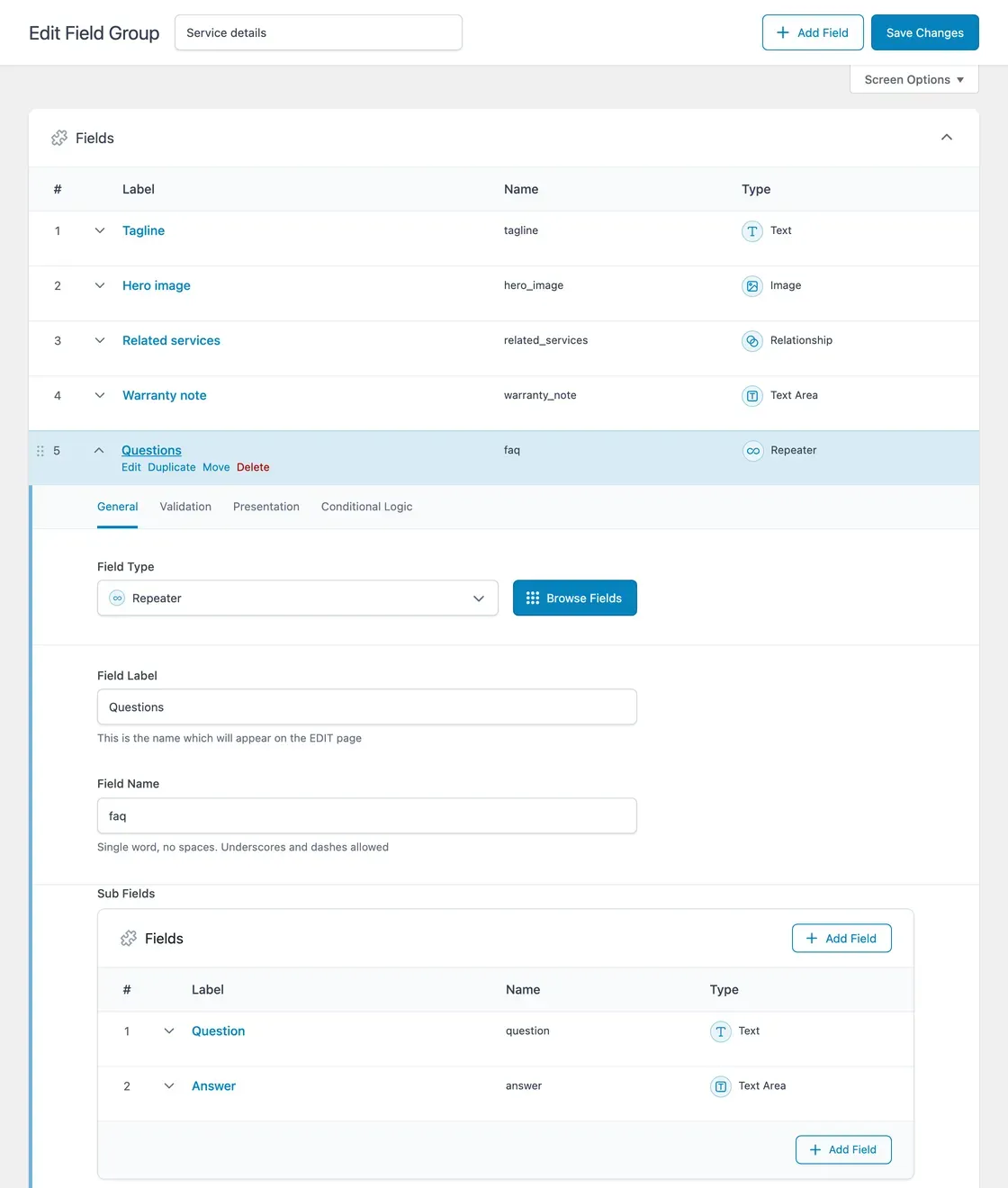
Here is how WordPress stores the “Leak repair” fields, from the site’s export file (trimmed):
<wp:meta_key>tagline</wp:meta_key>
<wp:meta_value><![CDATA[Leak repair without the wait]]></wp:meta_value>
<wp:meta_key>hero_image</wp:meta_key>
<wp:meta_value><![CDATA[8]]></wp:meta_value>
<wp:meta_key>related_services</wp:meta_key>
<wp:meta_value><![CDATA[a:2:{i:0;s:2:"45";i:1;s:2:"46";}]]></wp:meta_value>
<wp:meta_key>faq</wp:meta_key>
<wp:meta_value><![CDATA[1]]></wp:meta_value>
<wp:meta_key>faq_0_question</wp:meta_key>
<wp:meta_value><![CDATA[Question 0 about Leak repair?]]></wp:meta_value>
<wp:meta_key>faq_0_answer</wp:meta_key>
<wp:meta_value><![CDATA[Answer 0.]]></wp:meta_value>
Three things to see here:
- The image is a number: the ID of a WordPress attachment, not a file.
- The relation is serialized PHP: a list of post IDs in a PHP-only format.
- The repeater is flat:
faqholds the row count, and each row is its own pair of keys (faq_0_question,faq_0_answer). A repeater is a list of rows, each row with the same small set of fields.
The fill counts from the inventory for the Service type:
| Field | Filled |
|---|---|
tagline |
8 of 8 |
hero_image |
8 of 8 |
related_services |
8 of 8 |
warranty_note |
1 of 8 |
faq |
8 of 8 |
Step 2: Keep, merge, split or drop
Go through each type, then each field, and pick one of four outcomes:
- Keep it as it is.
- Merge two types that share a layout and differ by a field or two.
- Split a type that does two jobs.
- Drop what nobody fills, nobody edits and no URL needs.
Is it used? Entries fill it, it has a URL, someone edits it.
Yes
Is it doing two jobs? Two layouts, or two groups of editors.
No
Does another type share its layout and differ by a field or two?
No
Keep it
Not sure? Keep the field optional and mark it "check this". A merge or split that moves URLs needs redirects.
Five questions decide it. Each is a column in the model worksheet (CSV, opens in any spreadsheet):
| Column | The question |
|---|---|
| Filled count | How many entries fill it? |
| Shared template | Do two types render with the same layout? |
| Relationships | What links to it, and from which side? |
| Editorial owner | Who edits it, and do they treat it as one thing or two? |
| URL consequence | Does a merge or split change URLs that need redirects? |
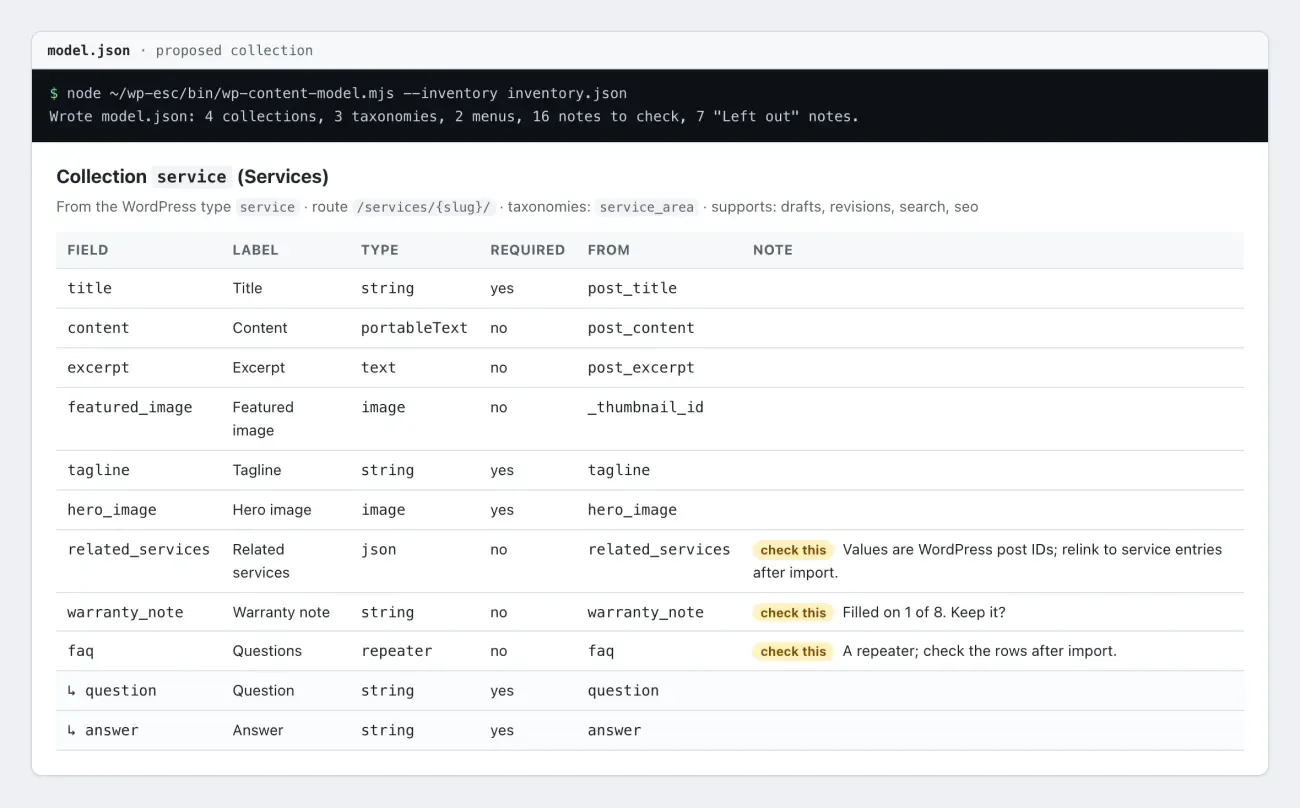
The skill sets one rule for fill counts. A field no entry fills gets “No entry has one. Remove it?”. A field filled on fewer than half its entries gets “Filled on N of M. Keep it?”. On our test site, warranty_note is filled on 1 of 8 services, so it gets that question. The skill keeps every unsure field optional, with a “Check” note, until you decide. That covers sparse fields, relations, repeaters, serialized values and fields with mixed types. A field gets a looser type (text or JSON) only where its values are unclear: warranty_note stays text, and faq keeps its rows.
The skill proposes; you decide. It does not merge or split types for you. Make your changes in model.json, the proposal file, and the skill writes the final files from it:
wp-content-model.mjs --model model.json --astro --seed--astro writes src/content.config.ts, and --seed writes the EmDash seed. For a site you can log in to, add --emdash-analyze <file> with the Exporter’s analysis, so the seed matches it exactly (Step 4).
When keeping the old model is safer
Moving first and redesigning later is often the better call. Keep the old model as it is when:
- Many URLs depend on it. Every merge or split that changes a URL needs a redirect.
- The deadline is tight. A move and a redesign at once doubles what can go wrong.
- Editors know the current fields. New fields mean new training.
- Other systems read those fields. A feed, an app or a partner site may break.
Even then, drop fields that no entry fills. That costs nothing.
The next two steps are one or the other: do Step 3 for plain Astro, or Step 4 for EmDash. Then go on to Step 5.
Step 3: Write the Astro collections
A content collection is a folder of entries of one type, such as content/service/, one Markdown file per entry. The schema is the rule each entry’s fields must follow. Astro checks every entry against it when it builds, and stops with an error if one does not fit. Both live in src/content.config.ts.
Our skill writes this file from the reviewed model.json (the --astro flag). Here is the Service collection it wrote for our test site:
// src/content.config.ts (the service collection)
service: defineCollection({
	loader: glob({ pattern: "**/*.{md,mdx}", base: "./content/service" }),
	schema: ({ image }) =>
		z.object({
			title: z.string(),
			excerpt: z.string().optional(),
			featured_image: image().optional(),
			tagline: z.string(),
			/** Check: Required in model.json; optional here so the site builds before the media files are copied into the project. Remove .optional() once every entry has its image file. */
			hero_image: image().optional(),
			/** Check: Values are WordPress post IDs; relink to service entries after import. */
			related_services: z.unknown().optional(),
			/** Check: Filled on 1 of 8. Keep it? */
			warranty_note: z.string().optional(),
			/** Check: A repeater; check the rows after import. */
			faq: z.array(z.object({ question: z.string(), answer: z.string() })).optional(),
			service_area: z.array(z.string()).default([]),
			draft: z.boolean().default(false),
		}),
}),
What each line does:
loadertells Astro where the entries live: every Markdown file incontent/service/. The file name becomes the entry’s id, which is the slug.z.string()means the field is text and required..optional()means an entry may leave it out.image()checks that the file exists and lets Astro optimize it. It stays optional until the media files are in the project. Optional only lets an entry leave the field out: a path to a missing file still fails the build. So leave image fields out of entries until the files are copied in.z.array(z.object(...))is the repeater: a list of rows, each with a question and an answer.service_areais the taxonomy: a list of term slugs. The terms themselves live in ataxonomiescollection in the same file.draftreplaces WordPress’s status. Astro does not hide drafts by itself, so filter them in every page, listing and feed:getCollection("service", ({ data }) => !data.draft).
The file also loads two JSON files that the skill does not write. You make them from the inventory. content/taxonomies.json holds each taxonomy’s terms, and content/menus.json holds each menu’s items:
// content/taxonomies.json
{ "service_area": [{ "slug": "emergency", "label": "Emergency" }, { "slug": "same-day", "label": "Same day", "parent": "emergency" }] }

// content/menus.json
{ "primary": [{ "label": "Services", "href": "/services/", "children": [{ "label": "Leak repair", "href": "/services/leak-repair/" }] }] }
Every “Check” comment is a question from the proposal. Settle each one before you move content in. For the relation, we replace the loose type with a real reference once the entries exist:
import { defineCollection, reference } from "astro:content";

related_services: z.array(reference("service")).default([]),
reference("service") points at another entry in the service collection by its id, so leak-repair lists water-heater-service and drywall-patching, not 45 and 46. A many-to-many link is a list of references on one side. We built our test project with both versions of this file.
Step 4: Set up EmDash from the seed
A seed is a JSON file that sets up an EmDash site: collections, fields, taxonomies and menus. Ours holds the schema only, with no content. EmDash’s importer then brings the content into it.
Here is the Service collection in the seed the skill wrote, built from the Exporter plugin’s own analysis of the site (trimmed):
{
  "slug": "service",
  "label": "Services",
  "urlPattern": "/services/{slug}",
  "supports": ["drafts", "revisions", "search", "seo"],
  "fields": [
    { "slug": "title", "label": "Title", "type": "string", "required": true, "searchable": true },
    { "slug": "content", "label": "Content", "type": "portableText", "searchable": true },
    { "slug": "excerpt", "label": "Excerpt", "type": "text" },
    { "slug": "featured_image", "label": "Featured image", "type": "image" },
    { "slug": "tagline", "label": "Tagline", "type": "string" },
    { "slug": "hero_image", "label": "Hero image", "type": "json" },
    { "slug": "related_services", "label": "Related services", "type": "json" },
    { "slug": "warranty_note", "label": "Warranty note", "type": "text" },
    { "slug": "faq", "label": "Questions", "type": "json" }
  ]
}
It differs from the Astro file on purpose. The seed follows what EmDash’s import asks for, so the import screen shows the type as Ready:
- Every custom field is optional. EmDash rejects an imported entry that lacks a required value. Turn Required on after the import, if at all.
- The image, relation and repeater are
json. That is the type the Exporter reports for them, so the import accepts the values as they are. - No nested URLs. EmDash has no
{path}pattern, so a child page moves to/<slug>. On our test site, two pages share the slugpricing. EmDash matches entries by collection and slug, so the import makes one entry for both. Rename one slug in WordPress before the import, and record the change in the mapping ledger.
The skill also writes seed/emdash-steps.md, with every difference and the import steps for this site.
On a fresh EmDash site:
- Copy
seed/seed.jsoninto the EmDash project, atseed/seed.json, before the site runs for the first time. - Start the site and open the admin. The setup wizard applies the seed. Then create the admin account.
- In WordPress, install and activate the EmDash Exporter plugin, version 1.2.0 or later. Then open Tools → EmDash Migration and copy the migration key.
- In the EmDash admin, open Import → WordPress, enter the site’s address and paste the key.
- Check each post type on the import screen, then start the import. Media comes in its own step after the content.
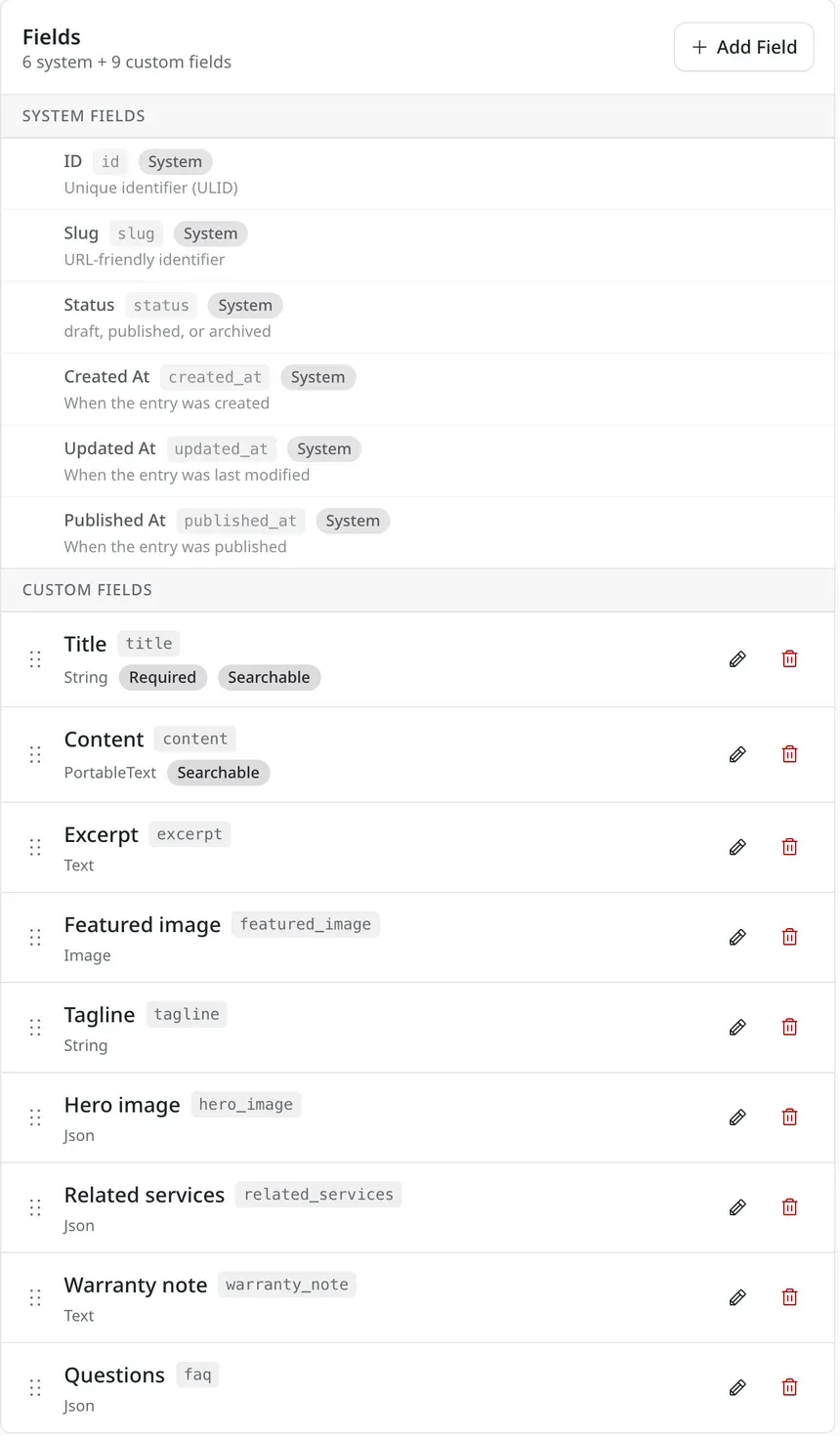
On the import screen, each post type shows one of four states (import docs):
| State | What it means | What to do |
|---|---|---|
| Ready | The collection and fields match | Go on |
| New collection | No collection for this type yet | Leave it on; the import makes it |
| Add fields | The collection is missing fields | Leave it on; the import adds them |
| Incompatible | A field has the wrong type | Change it to the type the screen names, then check again |
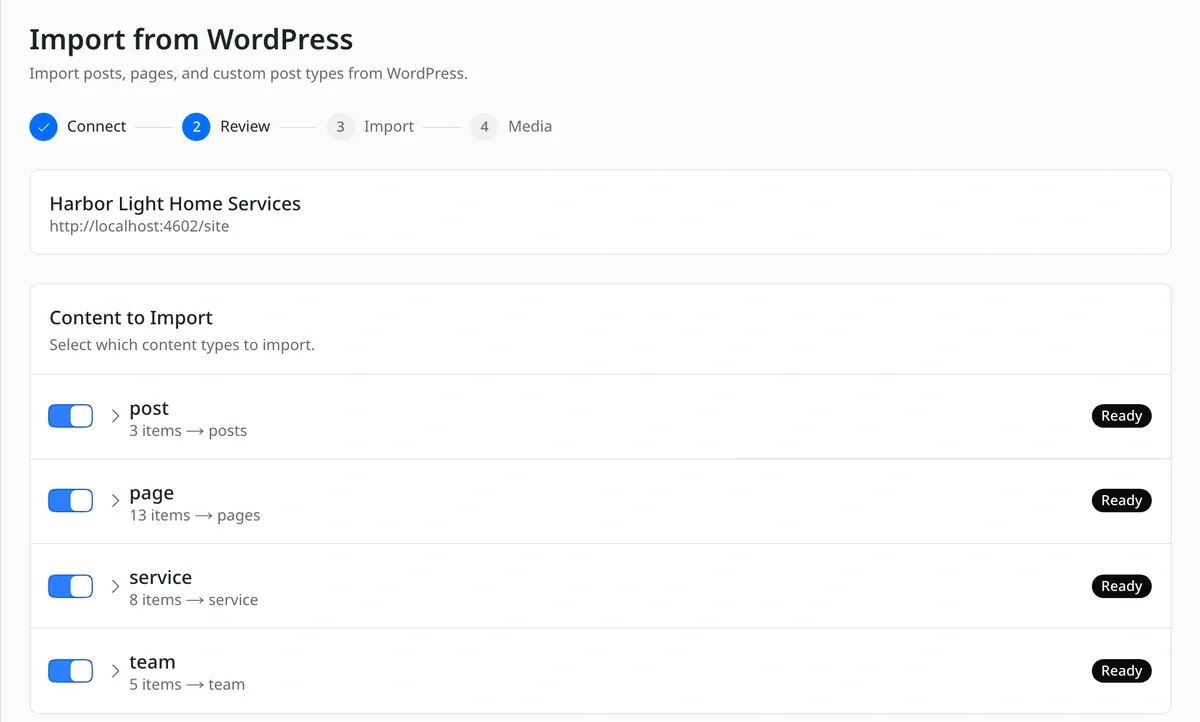
On an EmDash site that is already set up, the seed does not apply again. Add the collections and fields from seed/emdash-steps.md under Content Types, all optional, or skip that and let the import add them. Then import the same way.
Without the Exporter’s analysis (no --emdash-analyze), the skill guesses the seed’s types from the inventory, and the collection’s fields come from the old meta keys. The import through the Exporter plugin then brings a repeater in as flat fields (faq_0_question, faq_0_answer and so on) instead of whole rows. A plain export-file upload does not copy custom field values at all. For a site you can log in to, the Exporter with its analysis is the better source. seed/emdash-steps.md has the command for it.
Step 5: Keep a mapping ledger
A mapping ledger is a table with one row for each old thing and where it went: each type, field, term and entry. It does two jobs after the move:
- It fixes relations. Imported relations still hold WordPress IDs. The ledger says that 45 is now
water-heater-service. - It feeds the redirect plan. Every row whose URL changed needs a redirect.
The mapping ledger (CSV) has these columns, shown with rows from our test site:
| Old kind | Old name or ID | Old URL | New collection | New field or entry | New URL | Status | Note |
|---|---|---|---|---|---|---|---|
| Field | related_services |
service |
related_services |
Check | WordPress post IDs | ||
| Entry | 44 (Leak repair) | /site/services/leak-repair/ |
service |
leak-repair |
/services/leak-repair/ |
Redirect | Out of /site/ |
| Entry | 45 (Water heater service) | /site/services/water-heater-service/ |
service |
water-heater-service |
/services/water-heater-service/ |
Redirect | Out of /site/ |
| Term | same-day |
/site/service-area/same-day/ |
service_area |
same-day |
/service-area/emergency/same-day/ |
Redirect | Moves under its parent |
On EmDash, the term’s new URL is /service-area/same-day, since EmDash does not nest term URLs.
The type and field half is already in model.json: each collection and field has a from with its WordPress name. Add the entries and terms from the inventory.
Common mistakes
Importing first, modeling later. The import does not change a field that already exists. A wrong type stays wrong until you fix it by hand.
Strict types on sparse fields. A field empty on most entries must be optional, or entries fail the Astro build and the EmDash import.
Treating a repeater as text. It is a list of rows. In WordPress it is stored as flat keys; in the new model it is one list.
Keeping WordPress IDs in relations. They point at nothing on the new site. Relink them with the ledger.
Modeling page-builder layouts as fields. Rebuild the layout as components or sections, and keep only the content.
Redesigning for its own sake. Every change that moves a URL needs a redirect. Change the model where it helps editors or visitors.
FAQ
Collection or page?
A collection holds many entries of one type, such as posts or services. A one-off page, such as About, can be an entry in a pages collection or a plain Astro page.
Type or taxonomy?
If it has its own fields and its own page, it is a type. If it only groups other entries, it is a taxonomy.
How do I model flexible layouts?
As a short list of section types the editor can pick from, such as a hero, a text block and a gallery. Do not copy free-form page-builder data.
What about multilingual content?
Keep one entry per language. EmDash keeps one entry per language, each with its own draft or published state. In plain Astro, a folder or a lang field per language works. When the old site has more than one language, the skill marks each custom field to check in every language.
How do I reuse content, like a call to action on many pages?
Make a small collection of shared entries, and reference one where you need it.
Which way should a relation point?
From the side that is edited more often. On our test site, each team member lists the services they do, so the link is stored on the team member.
What to do next
- Plain Astro: put the reviewed
src/content.config.tsin the project, then move the entries into Markdown. Addcontent/taxonomies.jsonandcontent/menus.json(Step 3). Then build the routes that read the collections. - EmDash: apply the seed, then import.
- Both: plan redirects from the new URL rules and the ledger.
The wp-esc skills are free and MIT licensed. Give them to your coding agent: wp-inventory lists what is on the site, and wp-content-model proposes the model and, after your review, writes content.config.ts and the seed. For the reference, see Astro’s content collections guide and EmDash’s content model.
To see collections like these in a working site, start with our free Starter theme. It runs on plain Astro and on EmDash. For the full move, from inventory to redirects, see the WordPress move guide.
Before you start, list what the site has with our WordPress inventory guide. To choose between plain Astro and EmDash, read EmDash vs WordPress.